We use cookies for personalizing content and ads and providing social media features. Your usage information on our website will be used for social media, advertising, and traffic analytics, or shared with our partners. Clicking "Accept" means you agree to use our cookies .
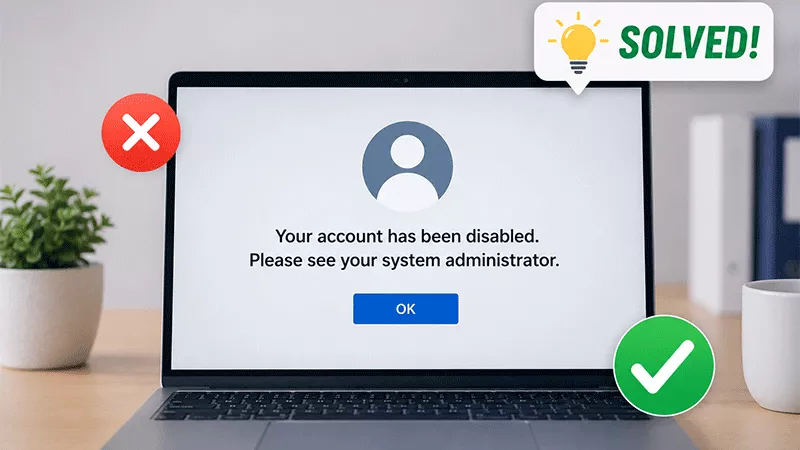
Trying to sign in to your Windows PC only to see the message "Your account has been disabled. Please see your system administrator" can be alarming. Since the disabled account can't be used to log in, many users worry they've lost access to their computer permanently.
Fortunately, that's rarely the case. This error usually means that Windows has marked the account as disabled. Depending on the cause, you can often re-enable the account using another administrator account, Command Prompt, or a professional Windows password recovery tool. In this guide, we'll explain why the error appears and show you several effective ways to fix it on Windows 11 and Windows 10.
Why Does Windows Say "Your Account Has Been Disabled"?
Windows disables an account for security or administrative reasons. The most common causes include:
The account was manually disabled by an administrator.
The built-in Administrator account was turned off.
Incorrect Local Users and Groups settings.
Corrupted user account information.
Changes made after a Windows update.
A domain administrator disabled the account.
Security policies or third-party software disabled the account.
Once you know the possible cause, choose the method below that best fits your situation.
Solution 1. Sign In with Another Administrator Account
If another administrator account exists on the computer, this is the easiest solution. You can access the computer and enable the account.
Step 1: Sign in using another administrator account.
Step 2: Press Windows + R, type compmgmt.msc and press Enter.
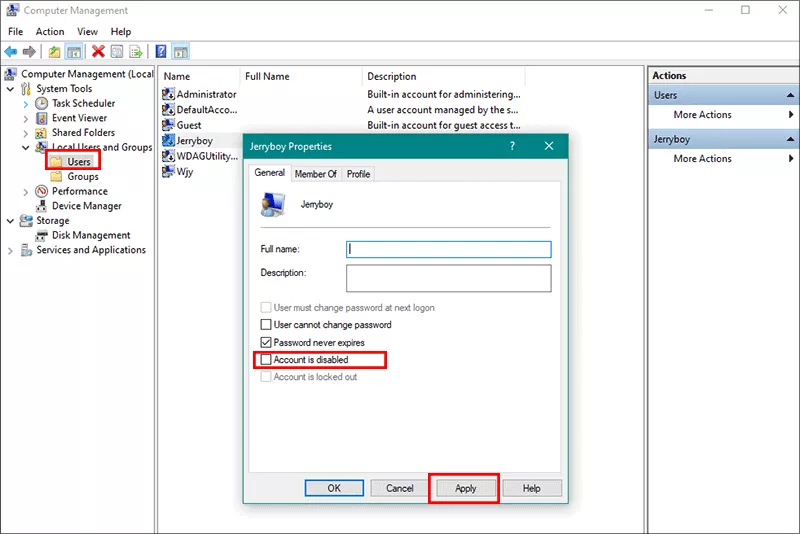
Step 3: Expand Local Users and Groups > Users. Double-click the disabled account.
Step 4: Clear the Account is disabled checkbox. Click Apply and OK. After that, restart the computer and try signing in again.
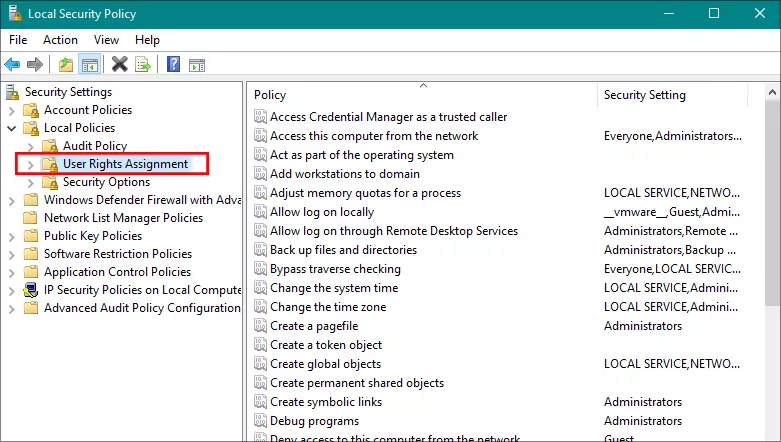
Step 5: Press Windows + R, type secpol.msc. Then open Local Policies > User Rights Assignment. Ensure the affected account isn't restricted from logging on locally.
Solution 2. Enable the Account via CMD
If you see the message – Your account has been disabled. Please see your system administrator, and cannot access the Windows OS, how can you get into the Windows computer without data loss? Don’t worry, here you can learn the details to enable the disabled account via CMD.
Step 1: Click OK on the Message screen to go ahead.
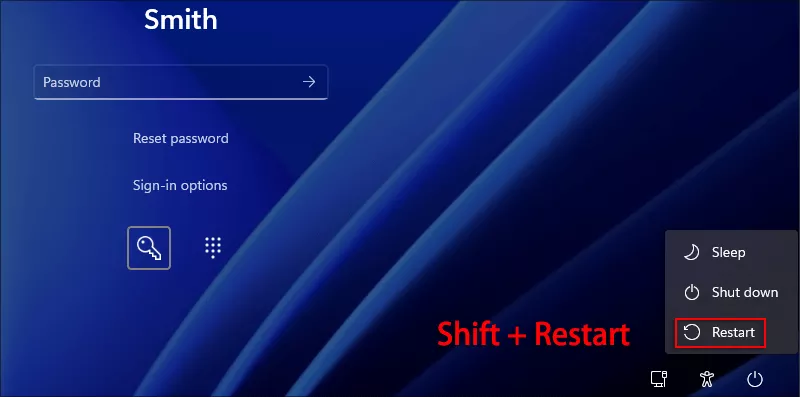
Step 2: Hit the Power icon. Choose the Restart option and press Shift key at the same time.
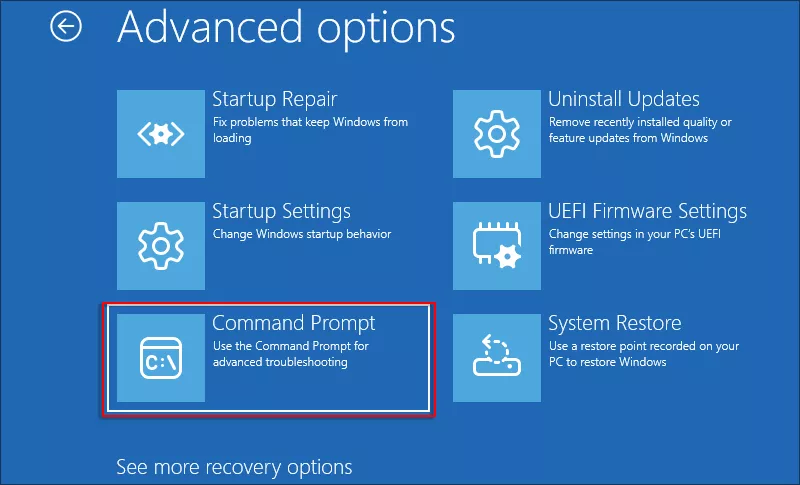
Step 3: In no time, the WinPE comes. Choose Troubleshoot> Advanced options> Command Prompt.
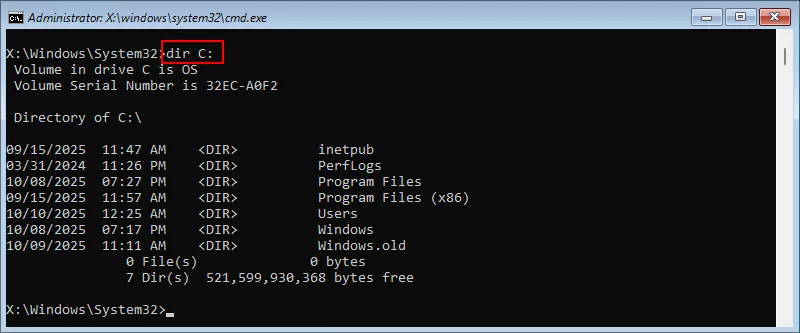
Step 4: Execute dir C: command line to check all files and folders on C drive. And here, you can know the C drive is the Windows OS partition.
Step 5: Run the command line to move utilman.exe : move C:\Windows\System32\Utilman.exe C: .
Step 6: Run the command line to replace Utilmane.exe with cmd.exe: copy C:\Windows\System32\cmd.exe C:\Windows\System32\Utilman.exe .
Step 7: Run the command line to restart your computer: wpeutil reboot.
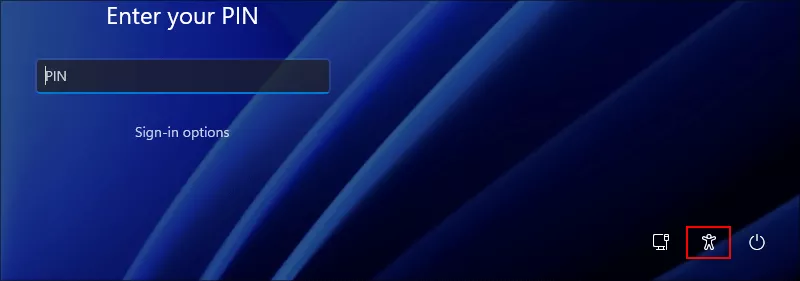
Step 8: After the computer reboots, click the Accessiblity icon to open Command Prompt.
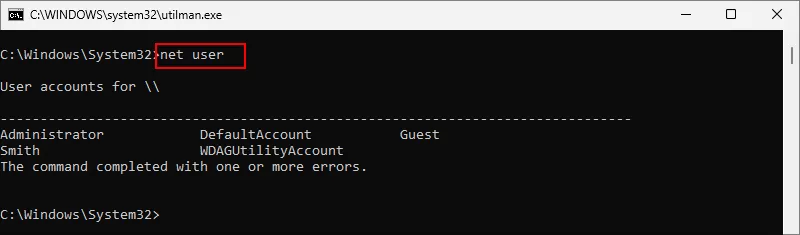
Step 9: Run the command line to list all user account: net user.
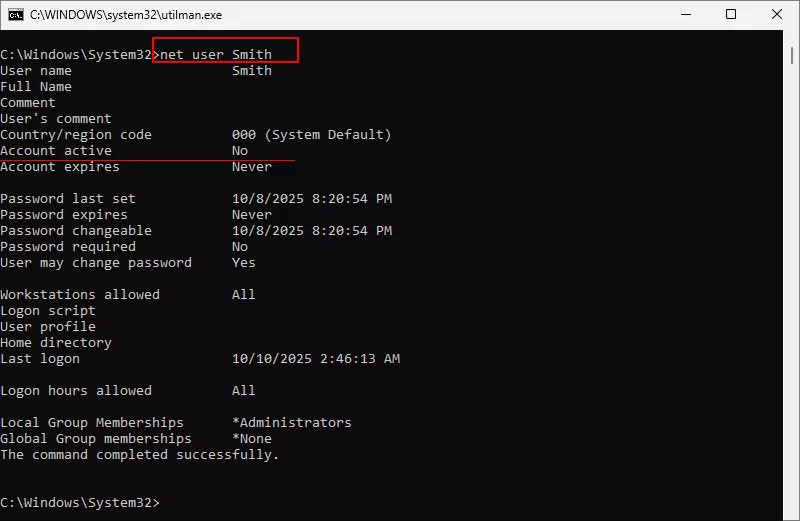
Step 10: Run the command line to check the status of your user account: net user Smith. (Replace Smith with your account).
Step 11: Run the command line to active your account: net user Smith /active:yes.
Step 12: Close Command Prompt and enter the password to sign in Windows.
After you successfully get into Windows, you need to open Command Prompt as administrator and restore Utilman exe via the command line: move /y C:\Utilman.exe C:\Windows\System32\Utilman.exe.
Solution 3. Create a New Administrator Account to Log in
As the CMD method is complicated for the people who knows little about the computer, there is an easy way for you to log into the Windows 11/10 computer and enable the account. iSunshare Windows Password Genius allows you to create an administrator account without logging into the operating system. Another working computer is needed during this process.
Step 1: Install iSunshare Windows Password Genius on another accessible computer. Insert a USB drive into the computer.
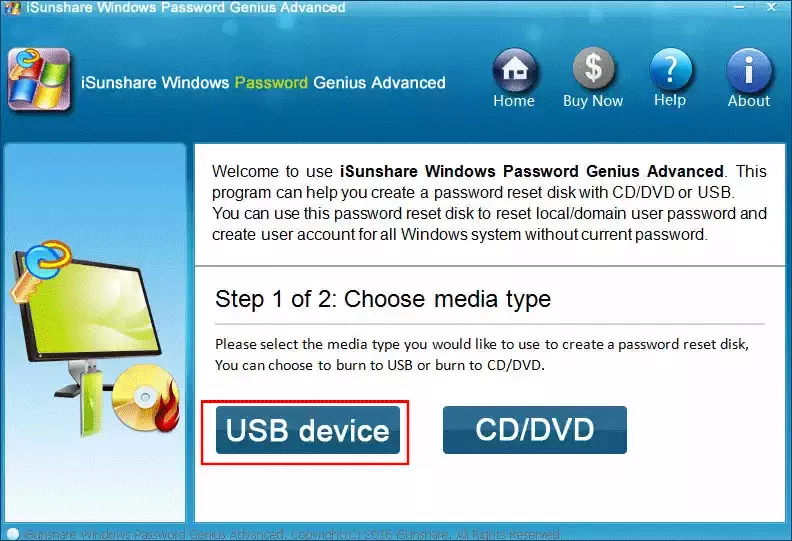
Step 2: Run the software and choose USB device option. After that, choose your USB drive and click the Begin burning button to create a bootable USB.
Step 3: After the bootable USB is made, insert it into the locked computer. And boot the computer from the USB.
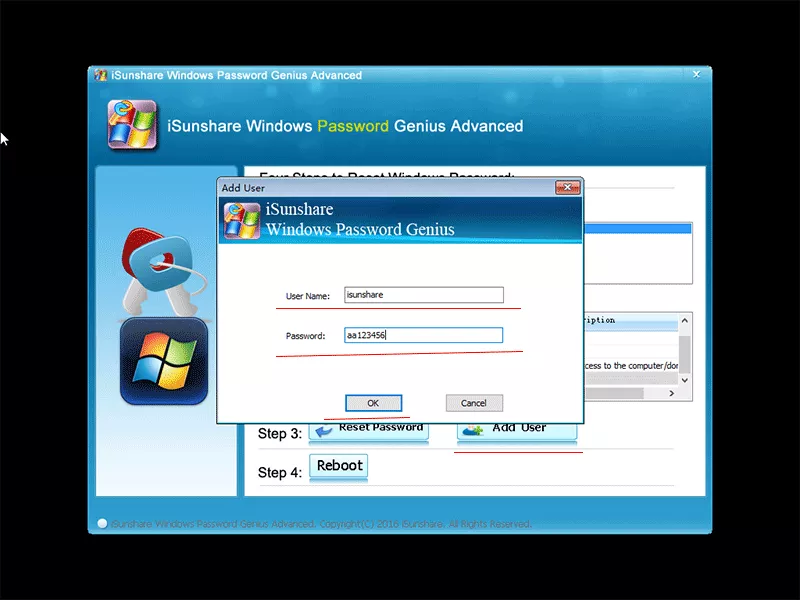
Step 4: When you see the software, click Add user button to set a new administrator account.
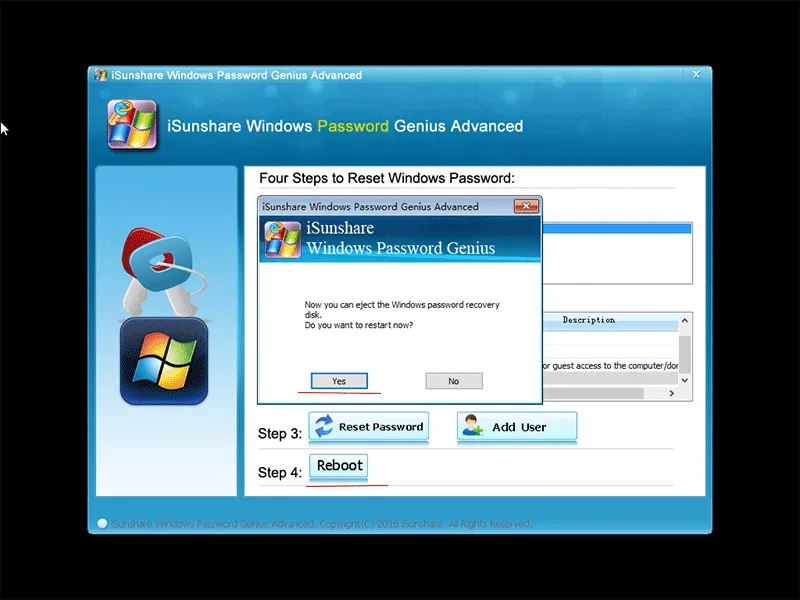
Step 5: Hit the Reboot button and click Yes to restart your computer. Meanwhile, remove the bootable USB drive.
Step 6: After rebooting, you can sign in Windows OS with the new administrator account and follow steps in Solution 1 to enable the disabled account.
FAQs on Your Account Has Been Disabled on Windows
Q1: What does "Your account has been disabled. Please see your system administrator" mean?
It means Windows has marked the user account as inactive, preventing anyone from signing in with that account until it's re-enabled.
Q2: Can I enable a disabled account without another administrator account?
Yes. If you don't have access to another administrator account, you can use Windows password recovery software such as iSunshare Windows Password Genius to create a new administrator account.
Q3: Does enabling a disabled account delete my files?
No. Re-enabling an account only changes its status. Your personal files and installed programs remain unchanged.
Conclusions
The "Your account has been disabled. Please see your system administrator" error may prevent you from logging in, but it's usually fixable without reinstalling Windows. Start by checking whether another administrator account is available, then try enabling the account through Command Prompt.
If you're completely locked out of your computer and don't have another administrator account, iSunshare Windows Password Genius offers a practical way to create a new administrator account so you can regain access to your Windows PC and change the disabled account status.